Help — how everything works
FORMA LABS designs the 3D-printable frame that holds your mold material around an object. You print the frame, place your object in it, pour silicone or plaster, and get a mold you can cast copies from. This guide walks through every panel in the order you use them. Every setting in the app also has a small i next to it — click it for a short explanation right there.
1 Getting started
Open FORMA LABS from your account. The first time, the app downloads once (about 1 MB) and then starts instantly. The start screen offers two samples and an import button; the FORMA LABS logo brings it back any time. The language switch (EN / TR) is in the top corner.
- Load an STL (or a sample) — FORMA LABS checks the mesh and offers a repair if needed.
- Choose a mold style and how many pieces the mold has.
- Set the walls: mold thickness, sleeve, rods, clips.
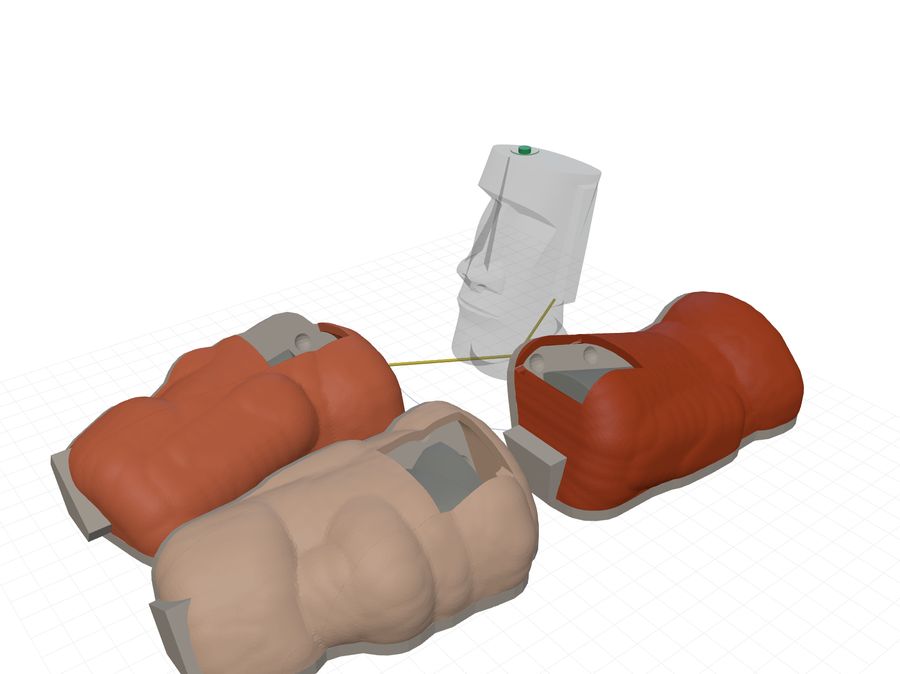
- Check in the 3D view: Print frames shows what you print, Cast mold shows the silicone you will get.
- Export the STLs, print them, assemble, pour.
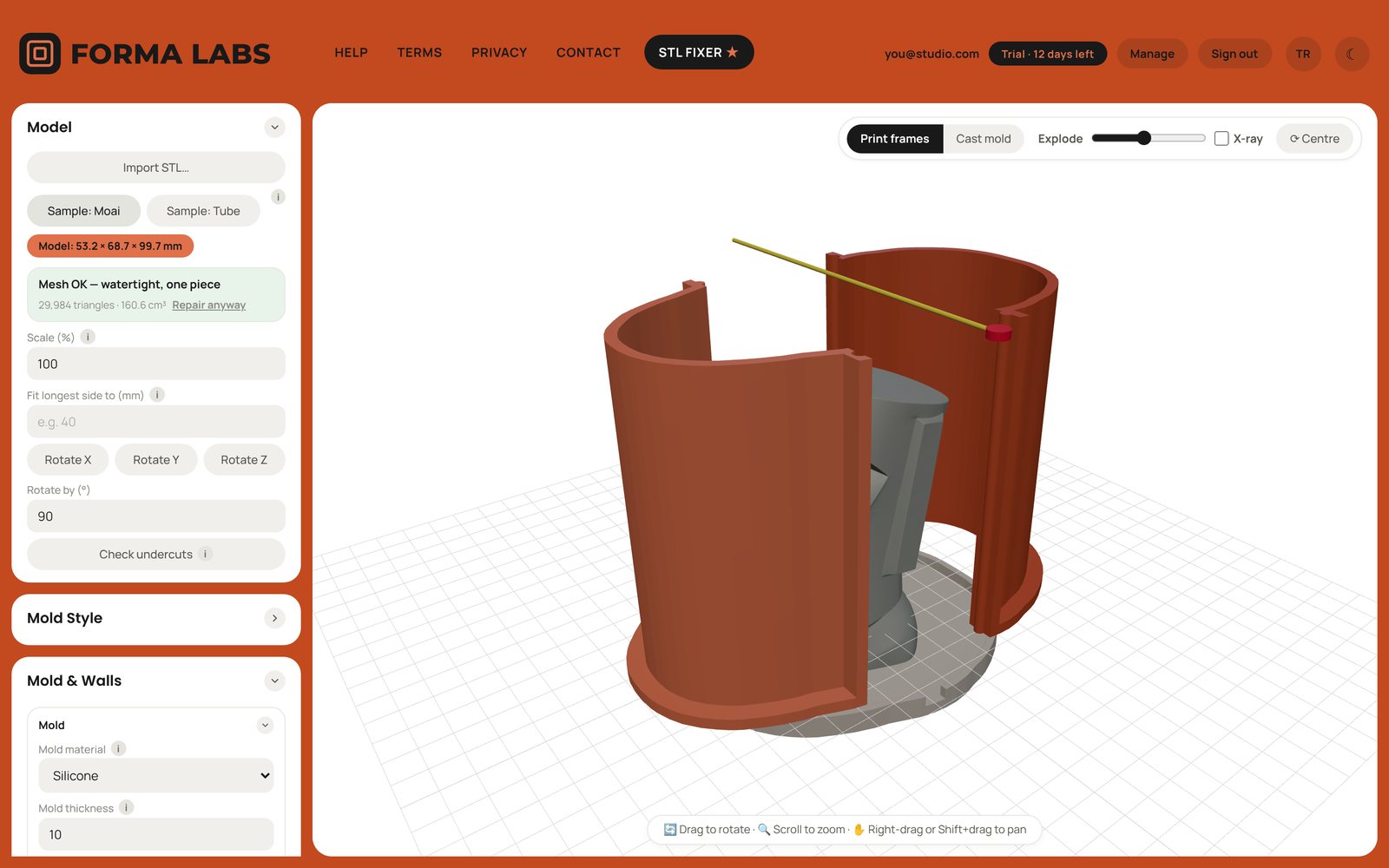
2 Loading & repairing a model
Import STL… or drag an STL anywhere into the window. Binary and ASCII STL both work. The coloured badge shows the model's size in millimetres.
The mesh check (Happy STL)
Every model is checked as it loads:
- Green — "Mesh OK, watertight, one piece". Nothing to do.
- Amber — "made of N separate pieces". The file is closed but consists of several overlapping solids (common with models built from parts). Click Merge into one piece: FORMA LABS unions them into a single solid so the cast preview and cores see only the outer surface.
- Red — "This model needs repair". Open edges, flipped or duplicate triangles. Click Repair model: cracks are welded, triangles turned the right way out, holes filled, paper-thin double walls removed and overlapping parts merged.
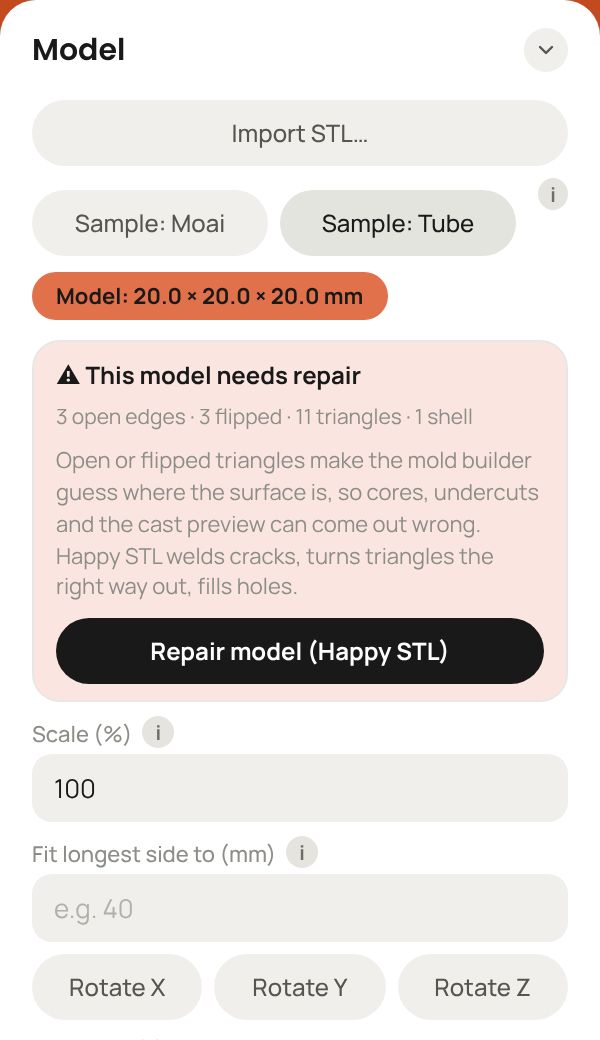
After a repair you can Download repaired STL to keep the fixed file.
Size and orientation
- Scale (%) resizes the model; Fit longest side to (mm) sets the real-world size directly — useful when an STL was exported in the wrong units.
- Rotate X / Y / Z turn the model by Rotate by (°) (90° default; use 10–15° to straighten a leaning model). The mold always works vertically: the base is under the model and side pieces split along vertical planes, so stand the model the way it should sit in the mold — usually with its flattest, least detailed face down.
- Check undercuts paints the model for the current layout: red where a rigid piece would have to drag through the model to come off, amber where silicone would stretch free. Rotate or add pieces until it is clean.
3 Mold style
| Style | What you get | Use it for |
|---|---|---|
| Contoured shell | A base plate plus form-hugging walls that follow the outline of your object. | Most silicone molds — uses far less silicone than a box. |
| Rectangular box | The same system of pieces as a classic straight-walled box, optionally split with flanges and M3 screw holes. | Simple blocky parts, or when you prefer a box. |
| Offset shell | A 3D shell at a constant distance all round, with the model floating centred and a compulsory pour funnel. | Multi-piece molds of rounded objects. |
Detail sets how accurately the outline is traced: Fast while experimenting, Balanced or Fine for the final export.
4 Mold & walls
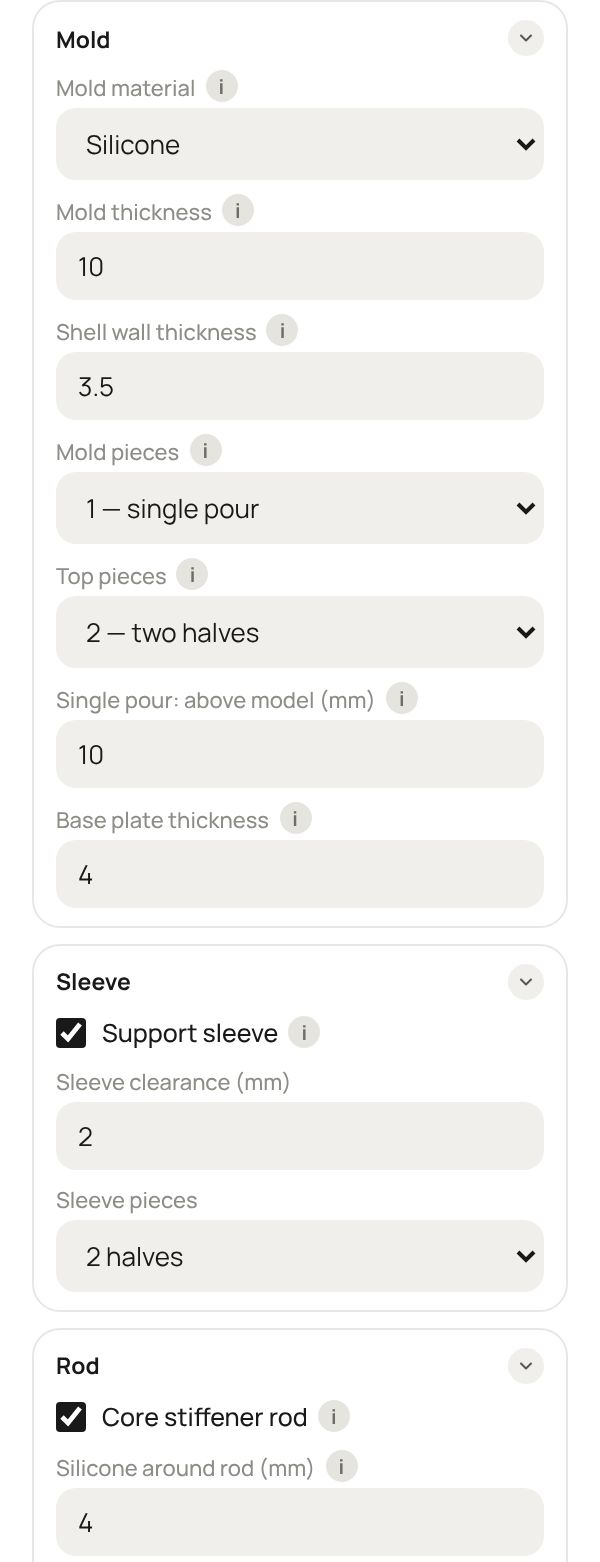
The Mold box holds the basic numbers:
- Mold material — Silicone (flexible, forgives small undercuts) or Plaster (rigid: every piece must pull straight off; FORMA LABS makes the keys shallow and the walls thicker).
- Mold thickness — the layer of mold material between your object and the printed frame. Silicone: 10 mm default; 4–6 mm for small parts, 10 mm+ for long or heavy casts. Plaster: 25–40 mm.
- Shell wall thickness — the printed plastic. 3–4 mm prints rigid with 2–3 perimeters.
- Fit tolerance — extra clearance on every pin, slot and clip (0.3 mm default). Raise to 0.4–0.5 if your printer runs tight.
- Mold pieces — 1 — single pour: one block of silicone poured over the model. 2–6 pieces: the mold is split vertically into side pieces plus a base (see section 5).
- Top pieces (single pour) — how many parts the printed frame walls split into, so it comes off the cured silicone easily.
- Single pour: above model — how much silicone lies above the top of the model (10 mm default).
- Base plate thickness — the flat plate everything stands on (4 mm).
Settings that only apply to multi-piece molds are hidden while you are on single pour, and the other way round.
5 Multi-piece molds
With 2–6 pieces, each piece of the mold is cast in its own closed frame and the pieces key together. This is the classic layout for slip casting and for shapes that silicone could not peel off in one piece.
- Base piece — casts a separate piece under the model. Untick it when the model's flat underside is the pour opening.
- Core for through-hole — for pipes, rings and adapters: the bore becomes a separate core with a foot flange held by the two base halves.
- Base piece height (%) — how far up the model the base reaches (raise it to cup a rounded foot).
- Base under model (mm) — material between the model's lowest point and the bottom of the base piece.
- Slip reservoir height — extra height above the model whose opening widens upward, so the slip level can sink while the plaster draws water.
- Top cover — material above the model's top. 0 = open top, the model's top face is the pour opening.
- Register key Ø / height — the keys that line the pieces up. Height 0 = automatic (shallow for plaster).
6 Support sleeve single pour
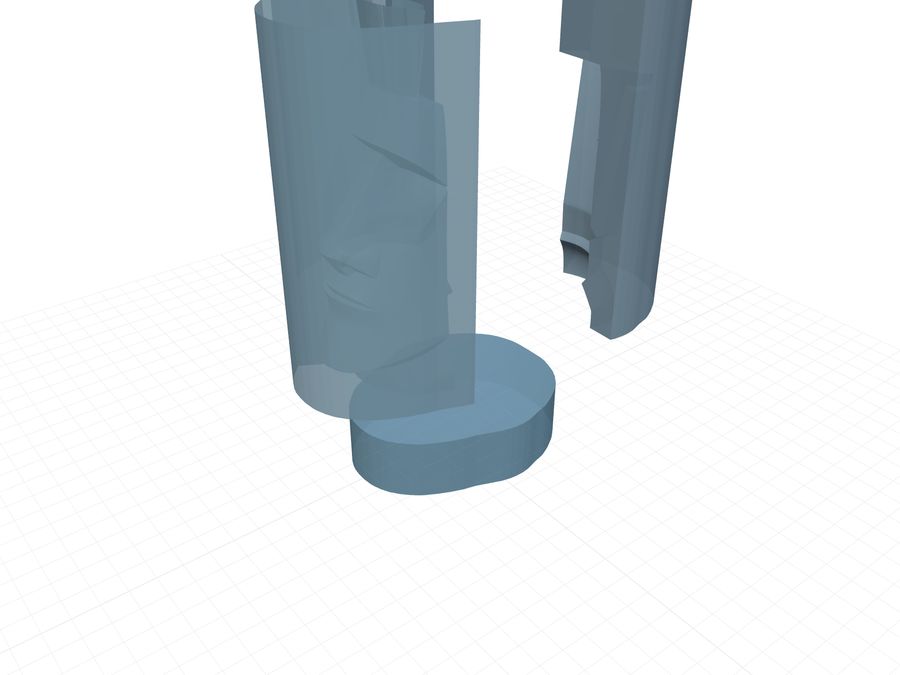
A tall, thin silicone mold flops over when you pour resin or plaster into it, and the frame you cast it in is too tight to use as a holder. Support sleeve adds a separate set of walls with the same outline, standing off the mold by Sleeve clearance (2 mm), so the finished silicone drops in loosely and stays upright. Sleeve pieces splits it (2 halves by default); the halves carry the same seam ribs as the frame, so your existing clips lock them together.
7 Core stiffener rod single pour
For models with one or more bores running all the way through (try the Tube sample). The silicone that fills a tall, narrow bore is a floppy column; the rod keeps it straight.
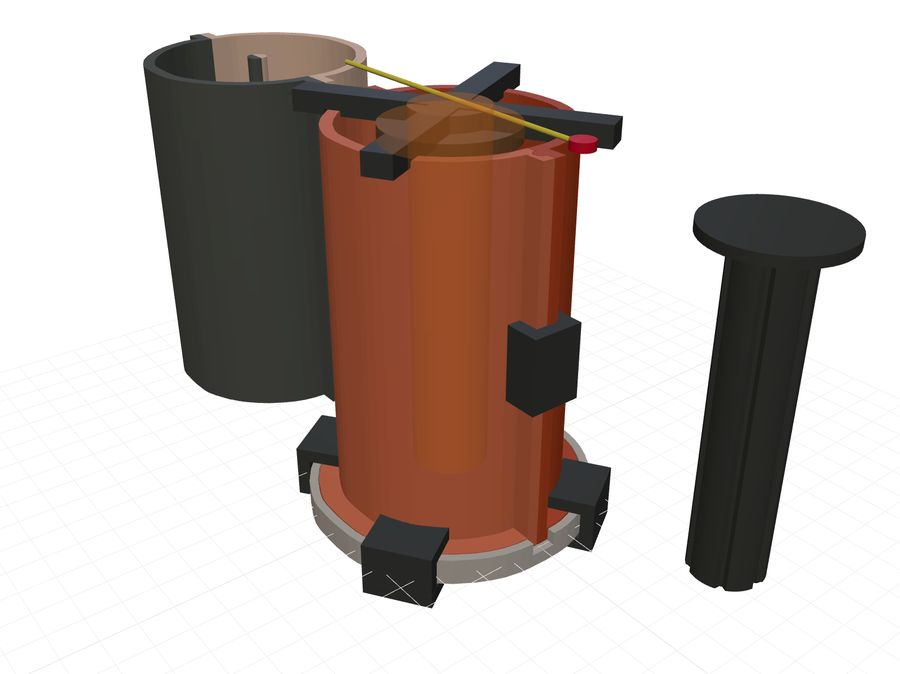
- Every through-bore gets a printed former: a rod shaped like the bore (not just a cylinder), hung from a beam that sits in slots on top of the frame walls and centres the hole. All rods hang from one connected frame.
- The rod stops one mold thickness above the base, so silicone closes the bottom. It leaves a channel in the silicone; after curing you slide a fluted dowel into that channel — it reaches the floor and its wider head sits in a recess cast into the silicone, so the mold stands flat.
- Silicone around rod — silicone wall left between rod and bore (4 mm). Beam angle turns the beam and its wall slots. Dowel head Ø / height and Flutes / depth shape the dowel.
8 Clips & frame details
- Clip every … mm — one clip mounting point every this many millimetres along the seams and the plate edge (60 mm default). Slide left for more clips if silicone leaks.
- Clip thickness / height — thicker clips grip harder and crack less.
Under Frame details:
- Skirt height / depth — the flared foot of the side pieces that the base clips grab.
- Seam joints & seam angle — every seam has a full-height key and groove. Seam angle rotates where the seams sit; you can also drag the orange handle at the end of the separation line in the 3D view (hold Shift to snap to 15°). Keep seams away from detailed areas.
- Seam rib depth — the ribs the seam clips slide over.
- Extra plate margin, Rim wall thickness — the base plate's edge and the raised rim that seats the side pieces.
- Hole core pillars — for ring-shaped models: a printed pillar fills the middle to save silicone.
9 Pouring funnel multi-piece
Adds a funnel former standing on the model's top face and rising to the top of the mold — it casts the pour hole and a flared reservoir in one go. Orient the model so the face you pour through is up. Set Ø at model and Ø at mold top, and place it with Offset X / Y or by dragging the small blue handle in the 3D view. Auto placement puts one funnel on each flat site found (for example both feet of a figure).
10 The 3D view
- Print frames — the parts you print. Explode pulls them apart; X-ray makes walls see-through.
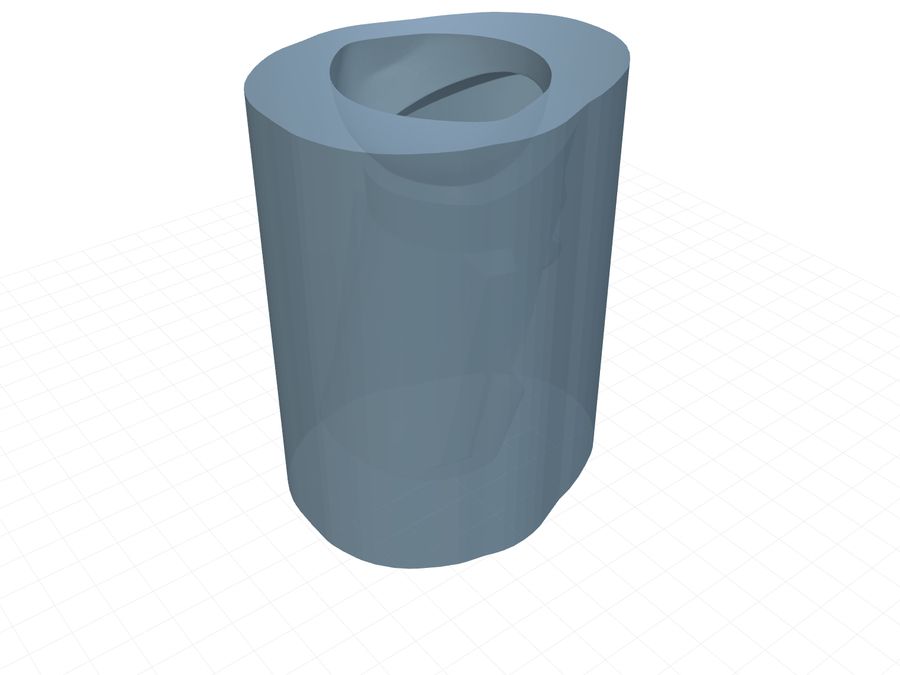
- Cast mold — the silicone (or plaster) you will get, turned open side up. Open mold slides the pieces apart.
- Mouse — drag to rotate, scroll to zoom, right-drag or Shift+drag to pan. ⟳ Centre resets the view.
11 Estimates
Mold material needed is the weight and volume of silicone or plaster to mix — add about 10% for waste. Casting material is the volume of one cast (your object). Mold size is the footprint. Set Material density from your silicone's datasheet (most are 1.10–1.25 g/cm³; the default is 1.15).
12 Export & print
Export STL lists every printable part — side pieces, base plate, clips, sleeve, rods, dowels — as its own file, plus All parts (nested) as one plate. In multi-piece molds each frame's plate carries its own printed section of your model (the master), fused to the plate, so every piece can be cast on its own.
- Material: PLA or PETG. PETG survives warm, exothermic plaster better.
- Settings: 0.2 mm layers, 3 perimeters, 15–20% infill. Walls, seams and keys are vertical, so most parts print without supports — check your slicer's preview.
- First test: print one clip and the matching seam section first. If clips are too tight, raise Fit tolerance; if loose, lower it.
13 Pouring & casting
- Fix the object to the base plate (a dab of hot glue or double-sided tape) and seal any holes you do not want silicone in.
- Stand the frame pieces in the plate rim, slide on the seam clips and base clips. Run a bead of plasticine or hot glue along the outside of the seams if your silicone is very runny.
- Spray or brush mold release on the object and the frame.
- Mix the silicone by weight as the Estimates panel says (+10%), degas if you can, and pour in a thin stream into the lowest corner — let it rise around the object.
- After the full cure time, remove the clips, open the frame and peel the mold out. Multi-piece molds: every piece has its own frame with its section of the model, so cast each frame, then assemble the pieces base-down with the keys interlocking — the top of the model is the pour opening.
- For tall single-pour molds, drop the cured silicone into the support sleeve before casting resin or plaster into it.
14 Troubleshooting
| Problem | Try this |
|---|---|
| "This model needs repair" | Click Repair model. If it still reports problems, the file has faces exactly on top of each other — move overlapping parts so they overlap a little in your CAD tool and export again. |
| Strange slivers in the Cast mold view | Run the repair or Merge into one piece — they come from inner walls of overlapping parts. |
| "Build failed" | Switch Detail to Fast, check the mesh, or reduce the number of pieces. Then tell us the settings (Contact). |
| Printed parts don't fit | Raise Fit tolerance by 0.1–0.2 mm and reprint the clips first. |
| Silicone leaks at the seams | More clips (lower Clip every), seal the outside of the seams, pour more slowly. |
| A seam runs across a detailed face | Change Seam angle or drag the orange seam handle. |
| The silicone tears where it wraps an undercut | Run Check undercuts; add pieces or rotate the model. |
| The app says I was signed out | Sign in again in another tab and click Reload — your current mold stays in the original tab until you reload. |
15 Account & billing
- Signing in — no password: we e-mail a link and a 6-digit code. Use the same e-mail on every computer.
- Free trial — 14 days with full access. A card is needed to start, but nothing is charged during the trial. We e-mail you two days before it ends.
- Price — €3.99/month, tax included, after the trial.
- Cancel — Account → Manage billing → Cancel. You keep access until the end of the trial or the paid month.
- Receipts & VAT invoices — Lemon Squeezy is our merchant of record; download them in Manage billing.
- Payment failed — FORMA LABS keeps working while Lemon Squeezy retries; update your card in Manage billing.
- Delete my account — cancel any subscription, then e-mail us.
Still stuck? Contact us — tell us your settings and attach the STL if you can.